This tutorial is written in PSP x8

Nederlandse vertaling door Angela

Nederlandse vertaling door Lisette


Obrigada por traduzir este tutorial


Merci pour la traduction Française Punnicia


Danke für die Deutsch Übersetzung Anja

Danke für die Deutsch Übersetzung Kniri

English translations by


Gracias por la traducción al español Tati Design

Tube
Tube Par Colybrix
Tube Par Colybrix
16_abstrait_animabelle
Plugins
Plugins
Mehdi - Sorting Tiles
Transparency
Simple
Simple
Flaming Pear - Flexify 2
Mask
Hüzünlüyıllar
Text
Şahmaran / Aslı
Materials

Hüzünlüyıllar
Text
Şahmaran / Aslı
Materials
Preparation:
Choose a light and a dark color from your tube
Properties Foreground; set your Foreground color to #0a1f00
Properties Background; set your Background color to #28e103
Properties Background; set your Background color to #28e103
Properties foreground: Make a foreground- background Gradient of these two colors
Note: When working with your own colors, play with the Blend Mode and/or Opacity at your own discretion
1- File / New - Open 900 x 600 Transparent Image
Not: You can change your colors from the marked place
 Flood fill - Fill With your Gradient
 Adjust - Blur - Radial Blur


Big Thanks To The Translators


Thank you very much for the versions



Meryem
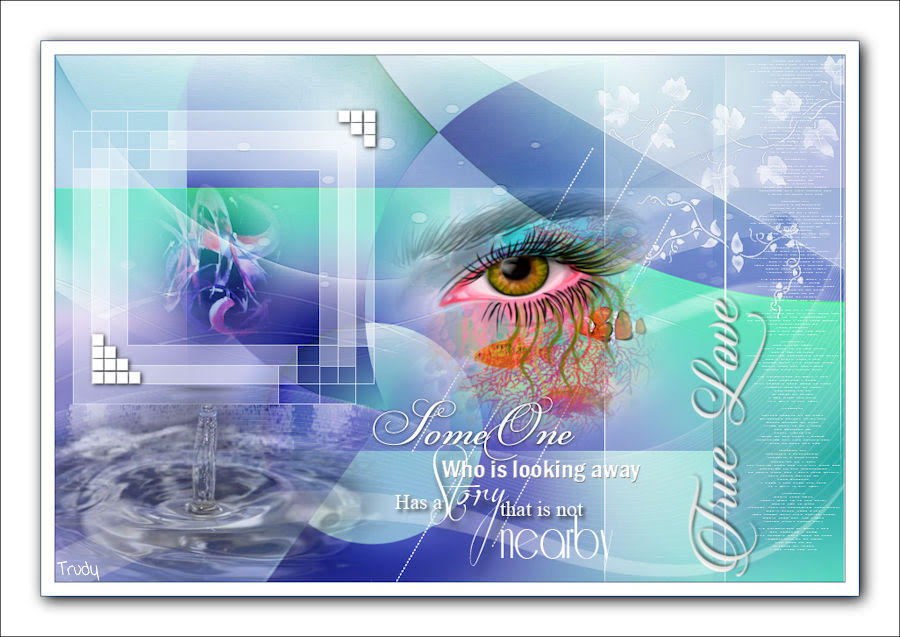
Trudy


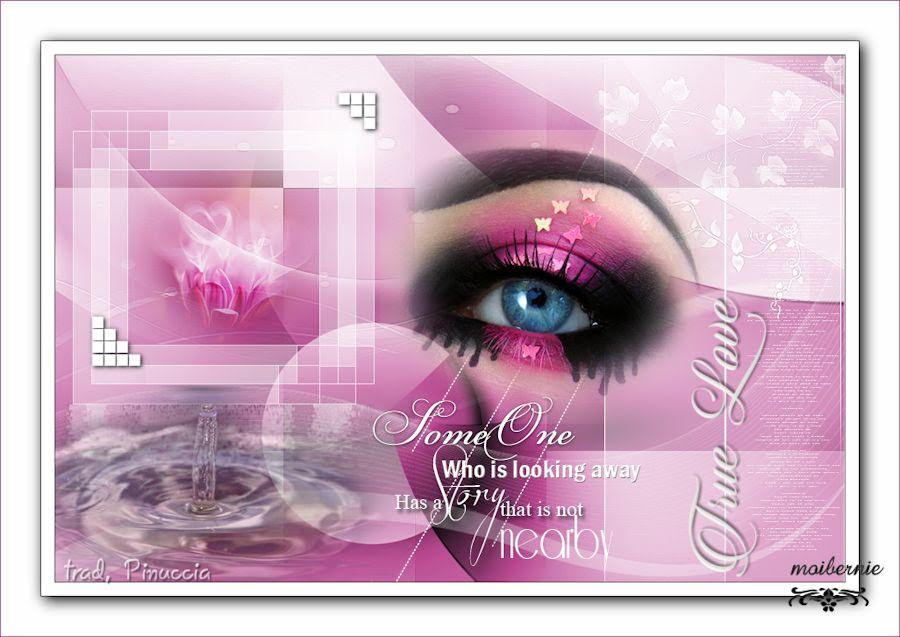
Bernadette
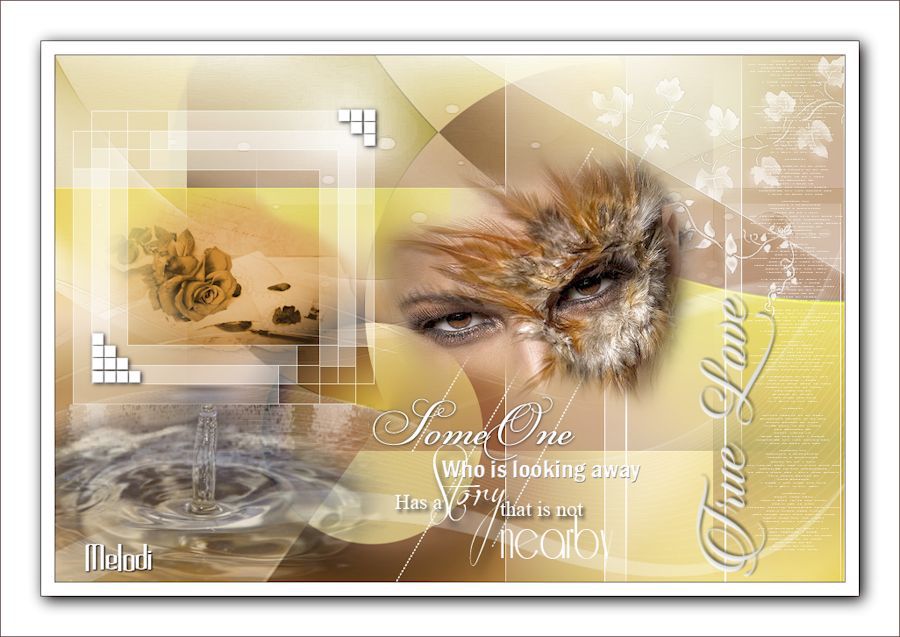
Melodi
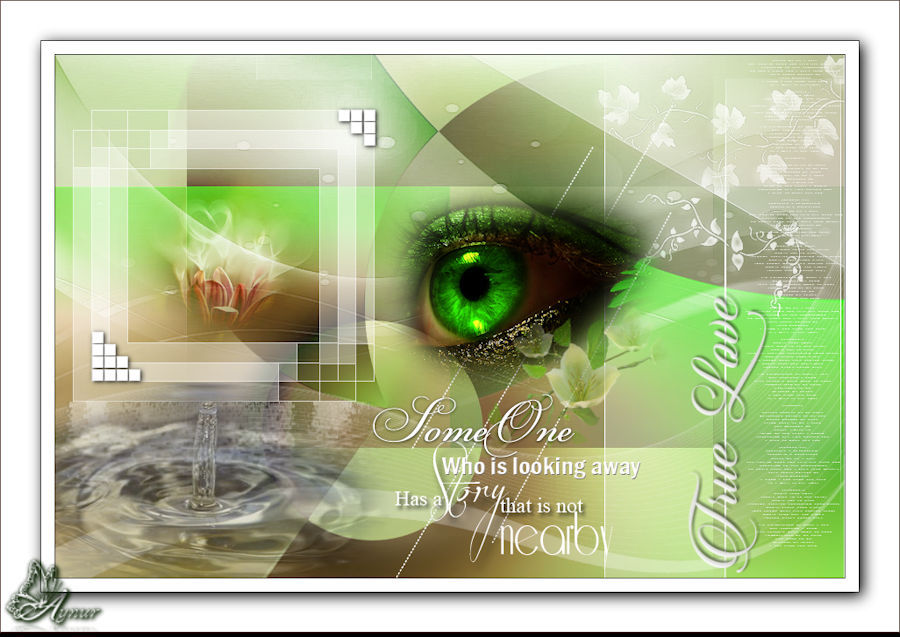
Aynur

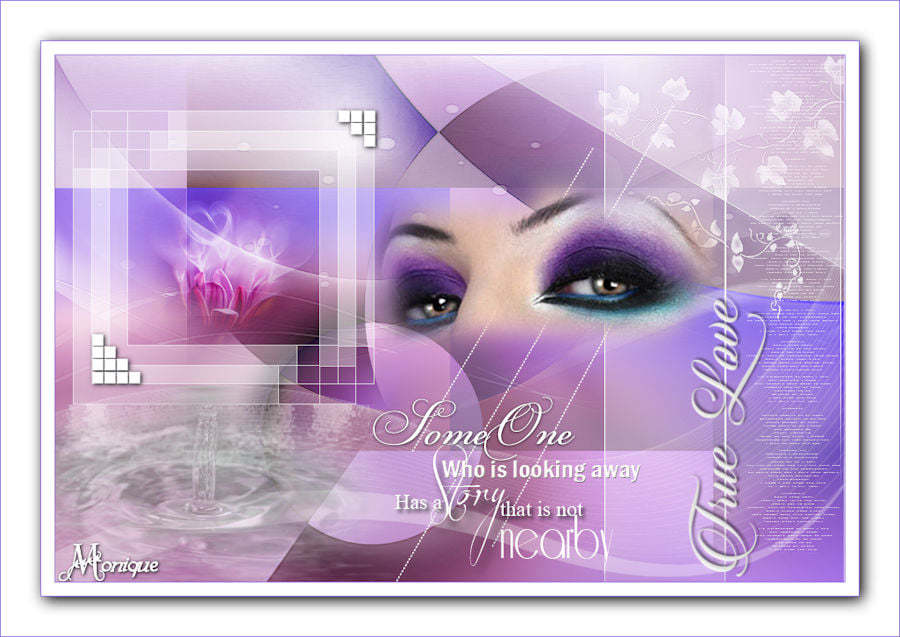
Monique


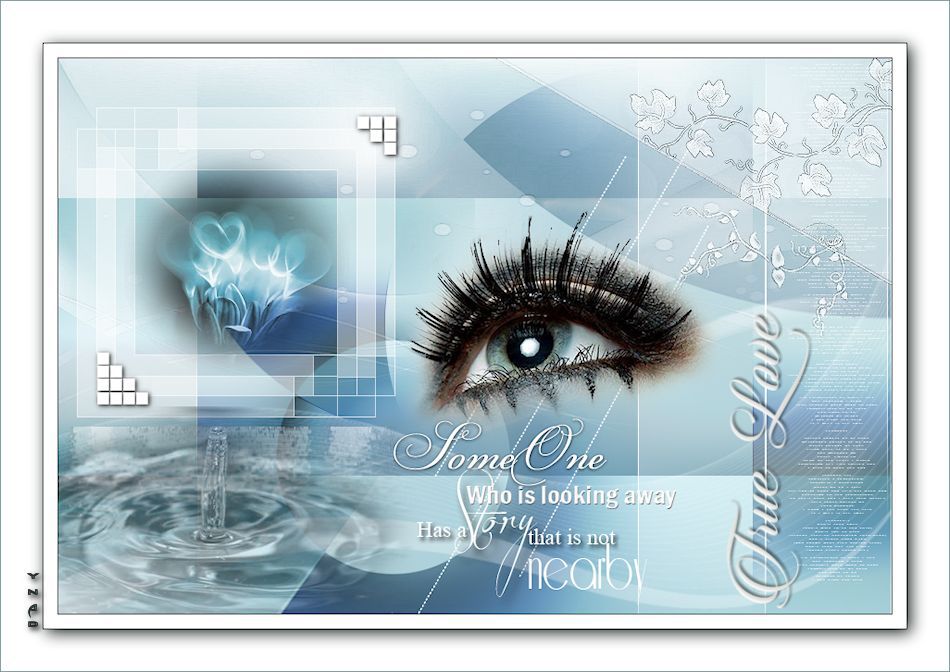
Dany
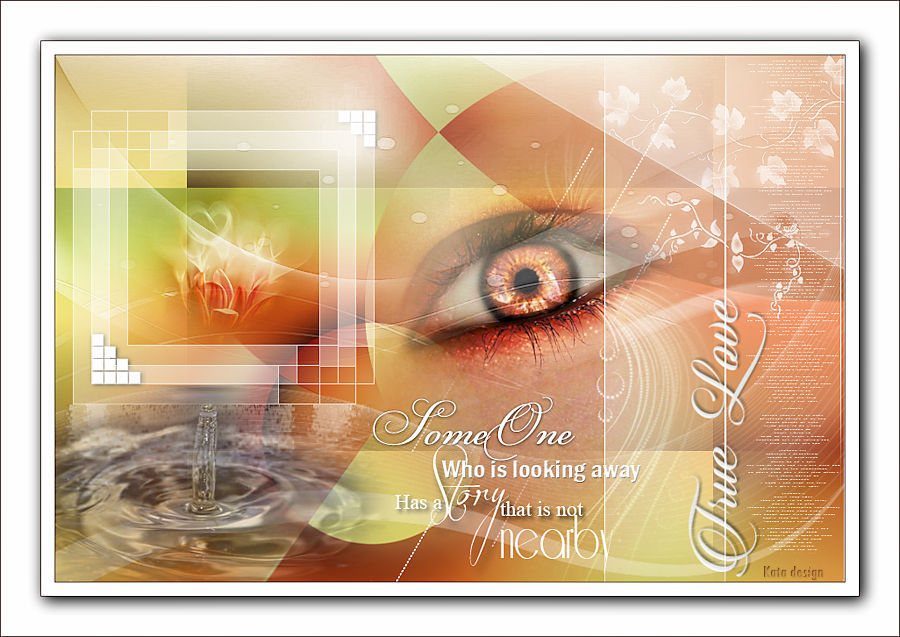
Kata


Not: You can change your colors from the marked place

Layers - Duplicate
Image - Mirror - Mirror Horizontal
Image - Mirror - Mirror Vertical
Layer Palette - Double click on this Layer and set the Blend Mode to ( Hard Light )
Layers - Merge - Merge Down
Effects - Simple - Half Wrap

Effects - Edge Effects - Enhance
Effects - Mehdi - Sorting Tiles

Effects - Image Effects - Offset

layers Duplicate
Effects - Transparency - Eliminate White
Effects - Plugins - Flaming Pear -Flexify2

Image - Mirror - Mirror Horizontal
Layers – New Raster Layer
Flood fill - Fill With your Background Color #FFFFFF
Open – Hy_Mask - Hy_TrueLove_Mask
Layers - New Mask Layer - From Image – Hy_TrueLove_Mask
 Layers - Merge - Merge Group
Adjust - Sharpness - Sharpen
 Open - Hy_Deko - Hy_TrueLove_Deko_1

 Layer Palette - Double click on this Layer and set the Blend Mode to ( Soft Light )
Layers - Duplicate
Open - Hy_Deko - Hy_TrueLove_Deko_2
 Open - Hy_Deko - Hy_TrueLove_Deko_3
 Open - Hy_Deko - Hy_TrueLove_Deko_4
 Open - Hy_Deko - Hy_TrueLove_Deko_5
 Open - Hy_Deko - Hy_TrueLove_Deko_6

 Open - Hy_Tube - Hy_TrueLove_Text
 Open - Hy_Tube - Sahmaran_TrueLove_Text
 Open - Hy_Tube - Sahmaran_TrueLove_Text_1

Layers – New Raster Layer
Flood fill - Fill With your Background Color #FFFFFF
Open – Hy_Mask - Hy_TrueLove_Mask_1
Layers - New Mask Layer - From Image – Hy_TrueLove_Mask_1
 Layers - Merge - Merge Group
Adjust - Sharpness - Sharpen
Open - Hy_Deko - Hy_TrueLove_Deko
Edit / Copy
activate your work
Edit / Paste As New Layer
Activate Pick Tooland place it like this
Activate Pick Tooland
place it like this
Edit / Copy
activate your work
Edit / Paste As New Layer
Activate Pick Tooland place it like this
Activate Pick Tooland
place it like this
Open - Hy_Tube - 16_abstrait_animabelle
Edit / Copy
activate your work
Edit / Paste As New Layer
Activate Pick Tooland place it like this
place it like thisLayers - Duplicate
Open - Hy_Deko - Hy_TrueLove_Deko_2
Edit / Copy
activate your work
Edit / Paste As New Layer
Activate Pick Tooland place it like this
Activate Pick Tooland
place it like this
Edit / Copy
activate your work
Edit / Paste As New Layer
Activate Pick Tooland place it like this
Activate Pick Tooland
place it like this
Edit / Copy
activate your work
Edit / Paste As New Layer
Activate Pick Tooland place it like this
Activate Pick Tooland
place it like this
Edit / Copy
activate your work
Edit / Paste As New Layer
Activate Pick Tooland place it like this
Activate Pick Tooland
place it like this
Edit / Copy
activate your work
Edit / Paste As New Layer
Activate Pick Tooland place it like this
Activate Pick Tooland
place it like this
Open - Hy_Tube - Tube Par Colybrix
Edit / Copy
activate your work
Edit / Paste As New Layer
Activate Pick Tooland place it like this
Activate Pick Tooland
place it like this
Edit / Copy
activate your work
Edit / Paste As New Layer
Activate Pick Tooland place it like this
Activate Pick Tooland
place it like this
Edit / Copy
activate your work
Edit / Paste As New Layer
Activate Pick Tooland place it like this
Activate Pick Tooland
place it like this
Edit / Copy
activate your work
Edit / Paste As New Layer
Activate Pick Tooland place it like this
Activate Pick Tooland
place it like this
Image - Add Borders - Symmetric, 1 pixel, color #0a1f00
Image - Add Borders - Symmetric, 15 pixel, color #ffffff
Image - Add Borders - Symmetric, 1 pixel, color #0a1f00
Selections - Select All
Image - Add Borders - Symmetric, 45 pixel, color #ffffff
Effects – 3D Effects – Drop Shadow

Effects – 3D Effects – Drop Shadow
Image - Add Borders - Symmetric, 1 pixel, color #62453f
Put Your Watermarkt
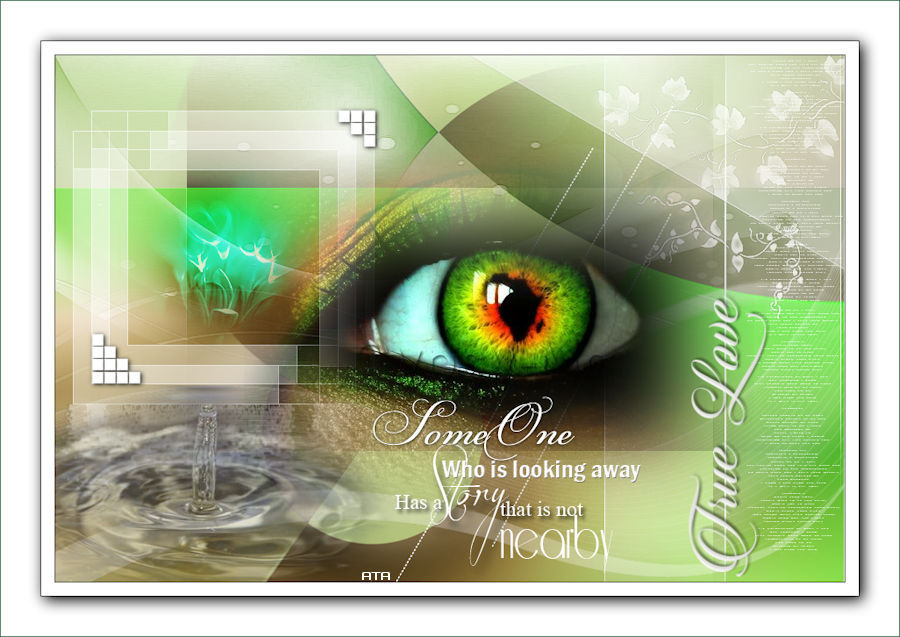
Image - Resize 900 Pixels
Save JPEG
Big Thanks To The Translators
Thank you very much for the versions
Meryem
Trudy
Bernadette
Melodi
Aynur
Monique
Dany
Kata


Müşerref
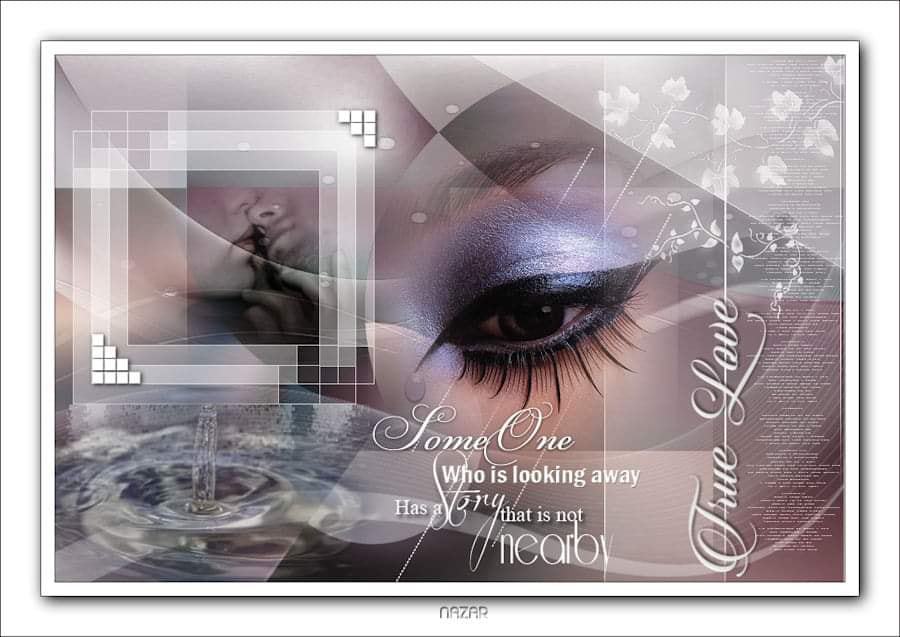
Nazar
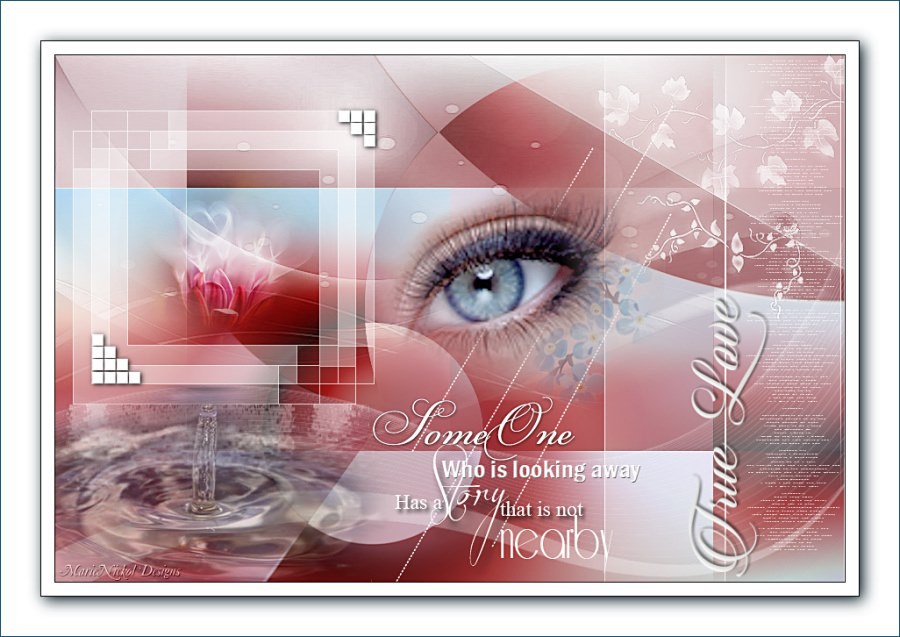
Marie
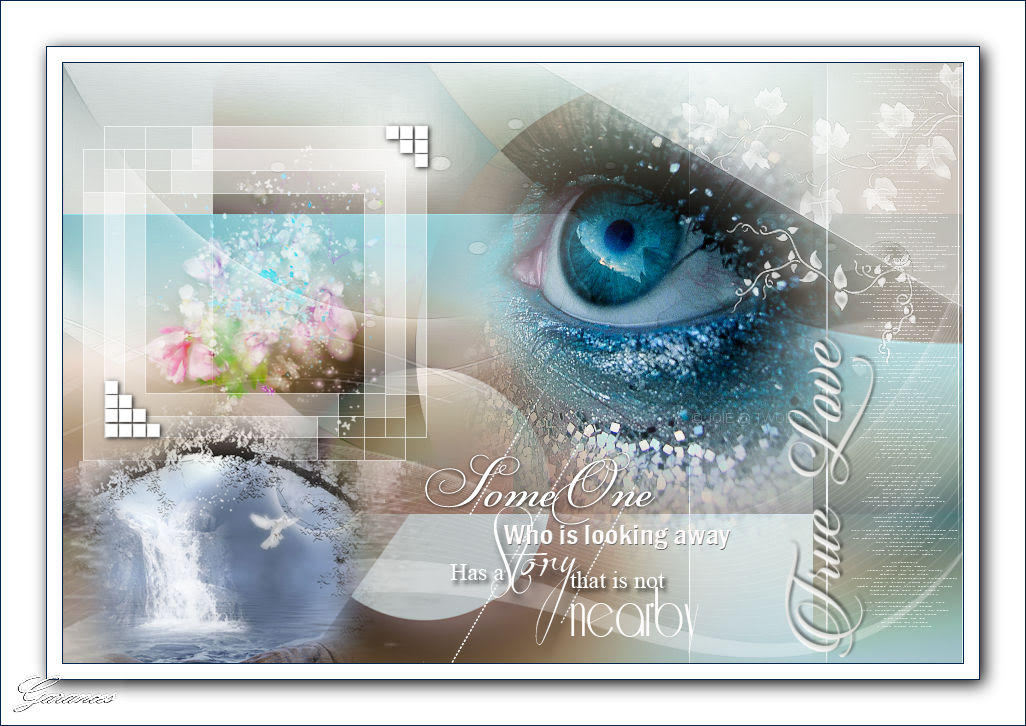
Gragesdesing


ATA
Barbaros